
Edit an Award
An Award refers to a Reward that was granted to a Member for “free,” without the Member having to spend their Metrics to redeem it.
From the Awards tab of the Member Details screen, you can edit the properties of an Award as long as it hasn’t been claimed yet. Once an Award reaches the Claimed status, it can no longer be edited.
To edit an Award from the Member Details screen:
-
Select Members from the top navigation bar, then select Members > Members from the side navigation menu. The Members screen is displayed.
-
On the Members screen, search for and select the desired Member (see Search for a Member for more information). The Member Details screen is displayed with the Metrics tab selected by default.
-
Select the Awards tab.
-
Optionally, search for the desired Award. See Member Details Tab Overview - Awards for more information on the available search options.
-
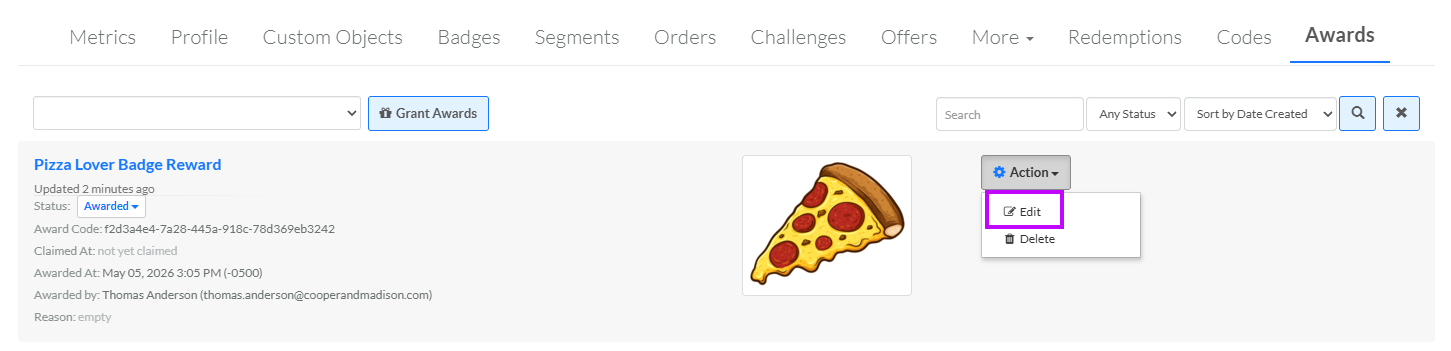
Next to the desired Award, from the Action drop-down menu, select Edit. The Edit Award pop-up window is displayed.
-
Optionally, grant the Award to a different Member. In the Member field, enter all or part of the Member’s name, then select them from the search results.
-
Optionally, check Auto Claim Upon Award to automatically set the Award status to Claimed. If left unchecked, the default Award status is Awarded.
-
Optionally, in the Reason field, enter the reason for editing the Award.
-
Optionally, change the effectivity period:
-
Always: This Award doesn't expire.
-
Scheduled: Enter a start date and end date, and select a time zone.
-
-
Click Save.
